
Integration Guide
for 7punches Embedded web terminal
Last Updated: Aug 25, 2026
Overview
This guide is for POS/partner engineers embedding the 7shifts 7Punches time-clock terminal into their system. The primary, expected integration is a native mobile webview and this guide is written for that path. A web iframe is also supported for web/hybrid hosts but carries extra constraints; it is documented separately.
Post message payloads referenced throughout can be found in the 7Punches postMessage Protocol Reference (provided separately).
Key concepts: terminal login vs PIN entry
To start, let’s discuss two different “login” concepts for clarity:
-
Terminal login (device session): this is a 7shifts user. The terminal must be signed in by a 7shifts user, this is typically a manager or admin, through an interactive user sign-in. That user's session is what authorizes the device to call the 7shifts API. It is done once; the terminal then persists the resulting user refresh token so subsequent launches resume silently.
-
PIN entry (employee identification): per punch, not authentication. Once the device is signed in, individual employees enter a PIN (or direct sign in via external ID) to identify themselves and punch. The PIN does not authenticate to the API. It selects who is punching within the already-authenticated manager session.
Important: partner API OAuth client credentials cannot sign the terminal in. Partners often already have an OAuth client for calling 7shifts APIs, however client credential logins are not accepted or used by the 7shifts terminal.
Quick start (the happy path)
At a glance, a native webview integration is:
- Embed: load the hosted terminal URL in your webview and register the
sevenPunchesnative bridge. - Wait for
7punches:ready: the terminal emits this once its message listener is installed. Do not send anything before it. - Send
7punches:init: withcompanyIdandapplicationName(plus the savedrefreshTokenif you have one). - First sign-in: with no saved token, a manager/admin signs in interactively; the terminal returns a user refresh token to you via
7punches:session_token. Save it securely. - Resume: on later launches, pass the saved token in
initfor silent resume. The token rotates, so always persist the newest one.
Employees then punch by PIN (or you can skip the PIN and target a single user. See Identity / operating mode). The rest of this guide details each step.
Reference Information
| Item | Notes |
|---|---|
| Terminal URLs | https://7punches.7shifts.com |
applicationName | Assigned integration identifier. Required at init; scopes user/role mapping to your integration. |
1. Embed the terminal (native webview)
The terminal auto-detects and routes outbound messages to the first available native bridge, so you only need to register the one your platform uses. Inbound messages (init, etc.) are delivered to the terminal's window message listener.
- iOS (WKWebView). Register a script message handler named
sevenPunches:config.userContentController.add(handler, name: "sevenPunches") - Android (WebView). Register a JavaScript interface named
sevenPunches:webView.addJavascriptInterface(bridge, "sevenPunches") - React Native.
react-native-webviewprovideswindow.ReactNativeWebViewautomatically. No bridge registration needed.
The handler name is
sevenPuncheson both platforms. Register your native bridge under the exact namesevenPuncheson iOS and Android. React Native needs no registration.
Receiving messages from the terminal
Outbound messages arrive on the bridge you registered. Note the payload encoding differs per platform: iOS WKWebView delivers a native object/dictionary, while Android and React Native deliver a JSON string you must parse.
iOS (Swift):
// Registration
let contentController = WKUserContentController()
contentController.add(self, name: "sevenPunches")
let config = WKWebViewConfiguration()
config.userContentController = contentController

// Handle inbound messages (body is a dictionary on iOS)
extension TerminalViewController: WKScriptMessageHandler {
    func userContentController(_ c: WKUserContentController,
                              didReceive message: WKScriptMessage) {
        guard message.name == "sevenPunches",
              let body = message.body as? [String: Any],
              let type = body["type"] as? String else { return }
        let payload = body["payload"] as? [String: Any]
        switch type {
        case "7punches:ready":
            sendInit()                                   // see section 3
        case "7punches:session_token":
            if let token = payload?["refreshToken"] as? String {
                Keychain.save(refreshToken: token)       // persist securely
            }
        case "7punches:session_expired":
            Keychain.clearRefreshToken()
        default:
            handleTerminalEvent(type: type, payload: payload)  // punch_success/_error/exit
        }
    }
}
Android (Kotlin):
class SevenPunchesBridge(
    private val onMessage: (type: String, payload: JSONObject?) -> Unit
) {
    // The terminal calls window.sevenPunches.postMessage(<json string>)
    @JavascriptInterface
    fun postMessage(json: String) {
        val msg = JSONObject(json)
        onMessage(msg.getString("type"), msg.optJSONObject("payload"))
    }
}

// Registration
webView.settings.javaScriptEnabled = true
webView.addJavascriptInterface(
    SevenPunchesBridge { type, payload ->
        // @JavascriptInterface runs on a background thread marshal to main
        // before touching the WebView or UI.
        when (type) {
            "7punches:ready" -> runOnUiThread { sendInit() }          // see section 3
            "7punches:session_token" ->
                payload?.optString("refreshToken")?.let { secureStore.save(it) }
            "7punches:session_expired" -> secureStore.clear()
            else -> handleTerminalEvent(type, payload)
        }
    },
    "sevenPunches"
)
2. Initialization handshake
- Load the terminal URL in your webview.
- Wait for the terminal to emit
7punches:ready. Do not sendinitbefore this. The terminal installs its message listener before emittingready, and messages sent earlier are missed. - Send
7punches:init.
Minimal init:
{ "type": "7punches:init", "payload": {
    "companyId": 12345,          // required (number)
    "applicationName": "toast"   // required (non-empty string; your assigned name)
} }
Full init (all optional fields):
{ "type": "7punches:init", "payload": {
    "companyId": 12345,
    "applicationName": "yourappname",
    "refreshToken": "def502...",       // saved user token → silent resume (section 3)
    "theme": "dark",                    // "light" | "dark"
    "lang": "fr-CA",                    // BCP-47 tag for UI locale
} }
Unknown/invalid fields are ignored; companyId and a non-empty applicationName are mandatory or the init is dropped. See the 7Punches postMessage Protocol Reference for full payload details.
3. Authentication & session (terminal login)
Terminal login establishes the user (manager/admin) session described in Key concepts above. There is one flow with two phases: an interactive first sign-in, then silent resume from a saved token.
Phase 1: First sign-in (interactive user OAuth)
On first launch (no saved refresh token), the terminal shows a Sign-in screen, completing a login issues a user refresh token. A manager or admin signs in with their 7shifts credentials. In a native webview the entire round-trip happens inside the webview as a top-level navigation and the token is returned to your host over the native bridge.
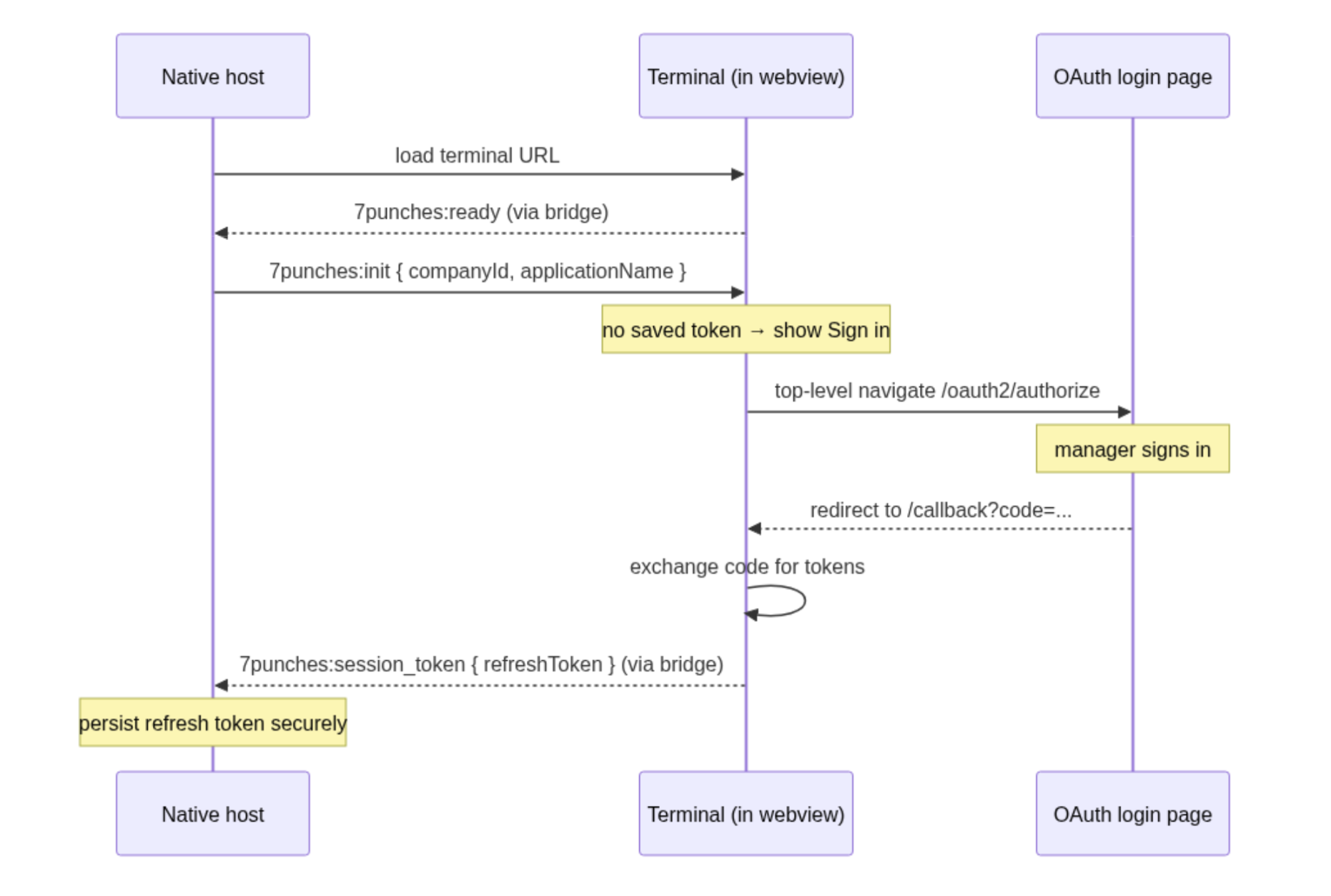
Sending init from native code
init from native codeDeliver init to the terminal as a window message event (its listener handles inbound messages). Build the JSON, include the saved refreshToken only when resuming (Phase 2), and inject it once you've received 7punches:ready.
Phase 2: Silent resume (host provides the saved token)
On every subsequent launch, pass the saved refresh token in init:
{ "type": "7punches:init", "payload": {
    "companyId": 12345,
    "applicationName": "appname",
    "refreshToken": "def502..."   // the refresh token saved from Phase 1
} }
The terminal silently exchanges it for a fresh access token and re-emits 7punches:session_token on every refresh.
- Persist the refresh token from each
session_tokensecurely, and pass the latest one on the next launch. Tokens rotate upon use, so always store the newest. - If the saved token is rejected, the terminal falls back to Phase 1 (interactive sign-in).
Note this is a user token, not a client credentials token. The saved refresh token belongs to the manager/admin user who signed in.
Session expiry
When the terminal can't recover a session on its own it emits 7punches:session_expired. Handle this by clearing the stored token and returning the terminal to Phase 1 (a manager re-signs in). Refresh token lifetimes are 1 month by default.
4. Identity / operating mode
PIN pad (default, shared terminal)
With no externalUserId, the terminal is a shared, company-scoped device: employees enter their PIN to punch. Suited to a fixed back-of-house terminal.
External-user mode (single user, skips PIN)
Pass externalUserId at init and the terminal skips the PIN pad, resolves your ID to the employee (via the mapping we configure), and lands directly on that user's status screen. When the user finishes, the terminal emits 7punches:exit (instead of returning to a PIN pad). The host should close or navigate away from the webview. Re-target a different user without a full re-init using 7punches:set_external_user.
5. Receiving punch results and events
Outbound events (full shapes in the 7Punches postMessage Protocol Reference):
| Event | Handle by |
|---|---|
7punches:ready | Send init |
7punches:session_token | Persist the refresh token |
7punches:session_expired | Re-authenticate |
7punches:punch_success | Record the punch (enriched for clock in/out; thin for breaks; offline:true when queued offline) |
7punches:punch_error | Surface/log the failure (category + message) |
7punches:exit | Close the webview (external-user mode) |
Updated about 5 hours ago